

Configuration Properties


The configuration properties panel of an element opens when clicking the icon  of its context menu.
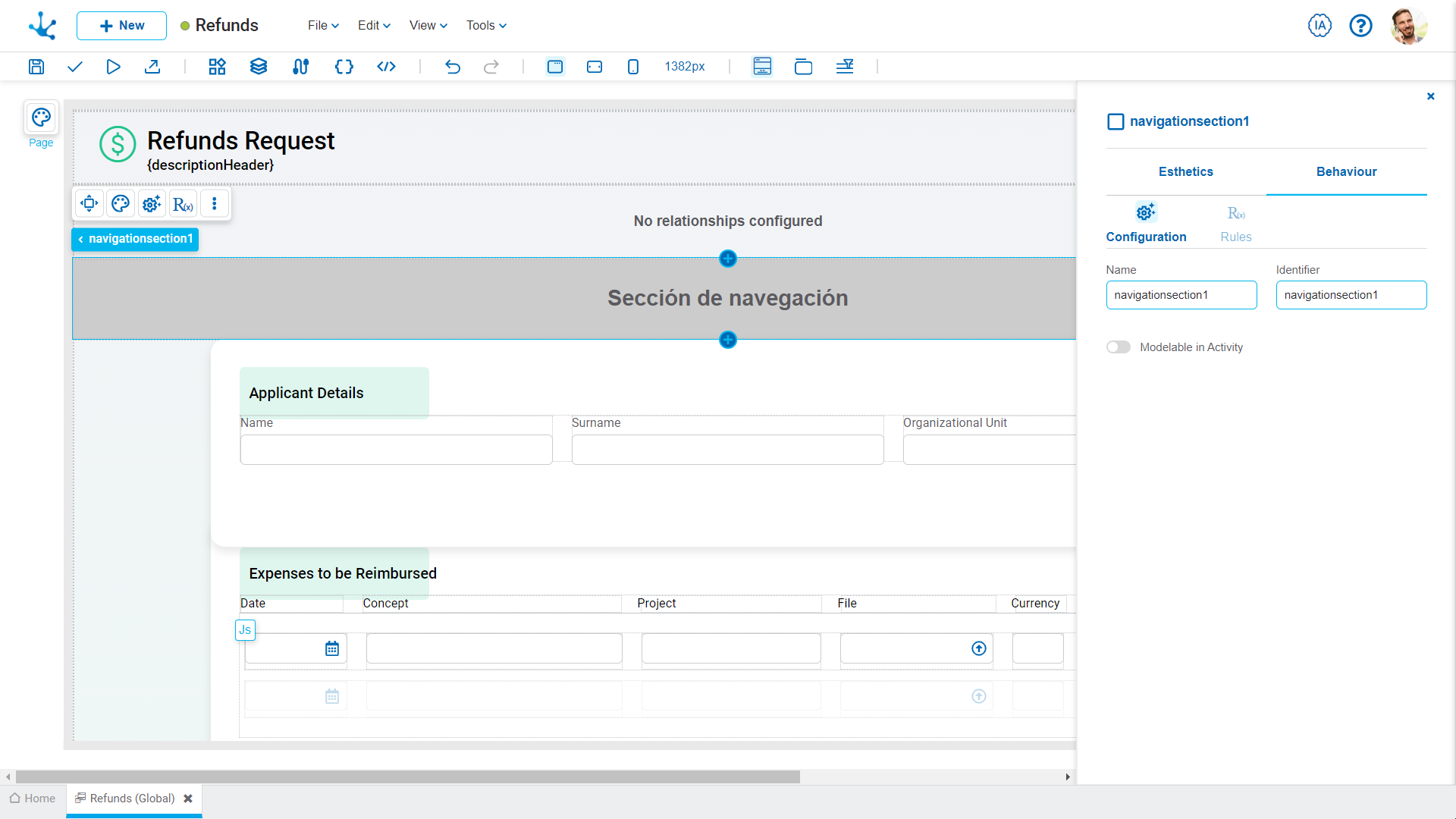
Name
Name used to reference the element during modeling.
Identifier
Uniquely identifies the element. It is used in the Javascript SDK.
Subtype
Corresponds to relationship navigation.
Horizontal
List of entities and elements configured to be displayed horizontally aligned.
Everything added in this section will be displayed directly in the menu bar as primary shortcuts.
Vertical
List of entities and elements configured to be displayed in vertical alignment.
They are grouped under an expanded menu. Clicking on the drop-down icon expands the list of related objects for selection.
By default, when the relation navigation element is added, the following preconfigured native elements are included in the Verticals section (with their configuration subtype set to Submenu Item):
•Attachments: It allows users to manage and display the associated documents.
•Chat: It facilitates direct communication associated with the instance.
•Emails: Displays related emails.
Editing and Managing Elements
To add a new option to the menu, whether horizontal or vertical, it is essential to be positioned in the breadcrumb on the main element with the "Relation Navigation" subtype. The "Add" button is displayed in the configuration properties only when this root menu is selected. It is not possible to add new options while positioned over one of the individual items in the submenu.
Through the button  it is possible to add new elements or business entities.
•Elements provided by Deyel: It is possible to add shortcuts to associated process cases, information about the current activity, attachments, and emails related to the entity instance.
•Entities: Relations to other custom entities in the data model can be added
Once the elements or entities have been added to the horizontal or vertical lists, it is possible to manage their order by dragging their position, delete them, or modify their advanced properties by placing the mouse over the desired element.
Clicking on the icon  , opens the relation configuration panel, which allows specific properties to be customized.
The following details the properties available in the configuration panel.
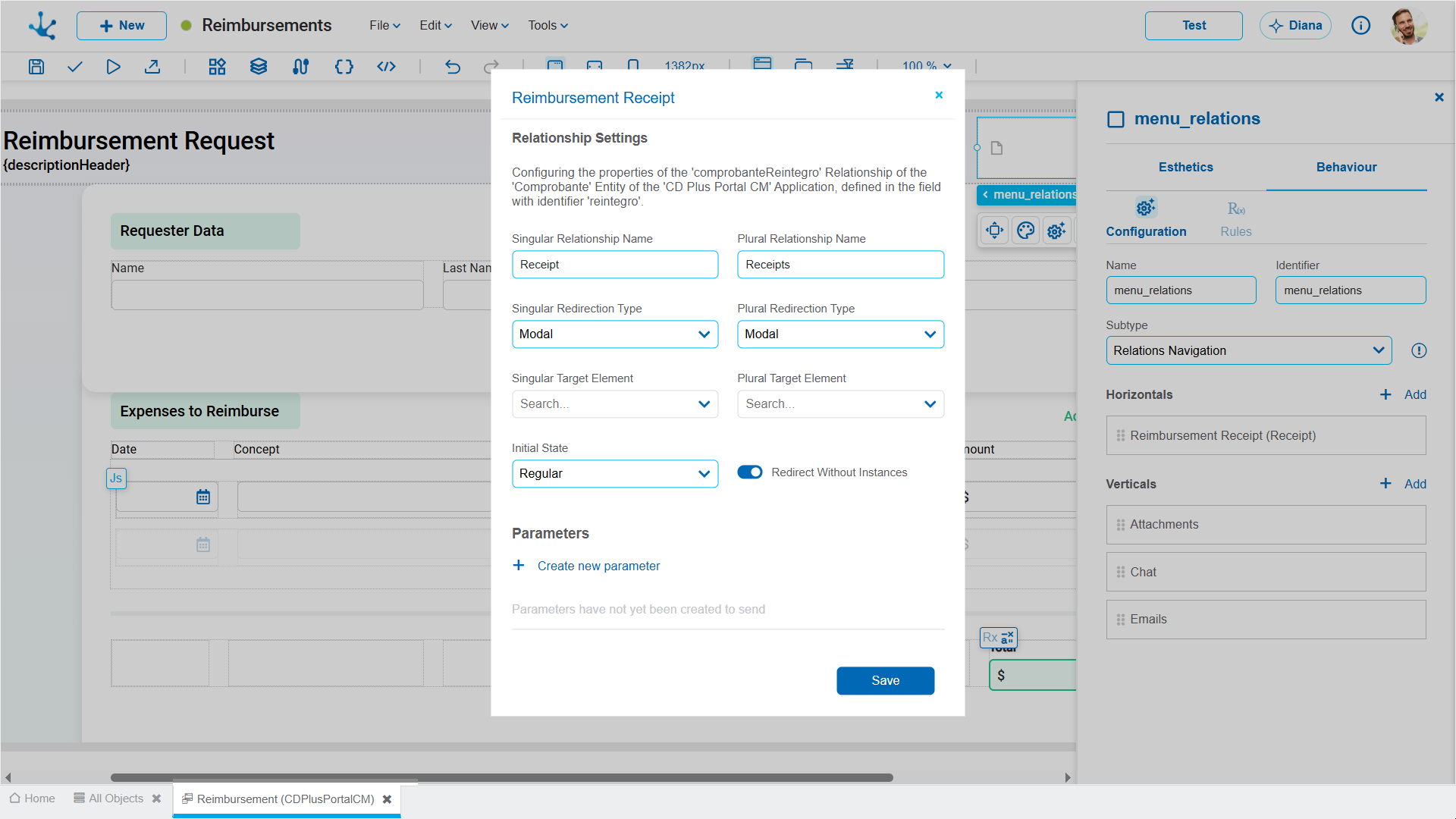
Singular Relation Name
Defines the text or label that will identify the relation in the menu when only one linked record or instance exists (e.g., Receipt).
Plural Relation Name
Defines the text or label visible when multiple linked records exist (e.g., Receipts).
Singular Redirection Type
The type of redirection determines the interface behavior, clicking on the relation element when only one instance exists. The options allow defining whether it opens in the same tab, in a new tab, or in a pop-up view.
Plural Redirection Type
Specifies how data is presented when multiple related instances exist.
Singular Target Element
Allows selecting the specific entity, page, or design element used to expand the single instance. The possible values depend on what is selected in the property Singular Redirection Type.
Plural Target Element
Allows selecting the destination view, grid, or section used to show multiple instances. The possible values depend on what is selected in the property Plural Redirection Type.
Initial State
Defines the default visual or enabling state of the access within the menu (e.g., Regular, Inactive).
Redirect without Instances
If this property is enabled, the menu will allow clicking and navigate to the destination section or entity even if there are no records or instances previously associated with the current entity.
Parameters
This section allows mapping and transferring contextual data from the source entity to the destination element during navigation. The button  allows defining additional variables or parameters that are sent to the destination entity to apply filters, populate values automatically, or maintain workflow consistency.