

Tabla


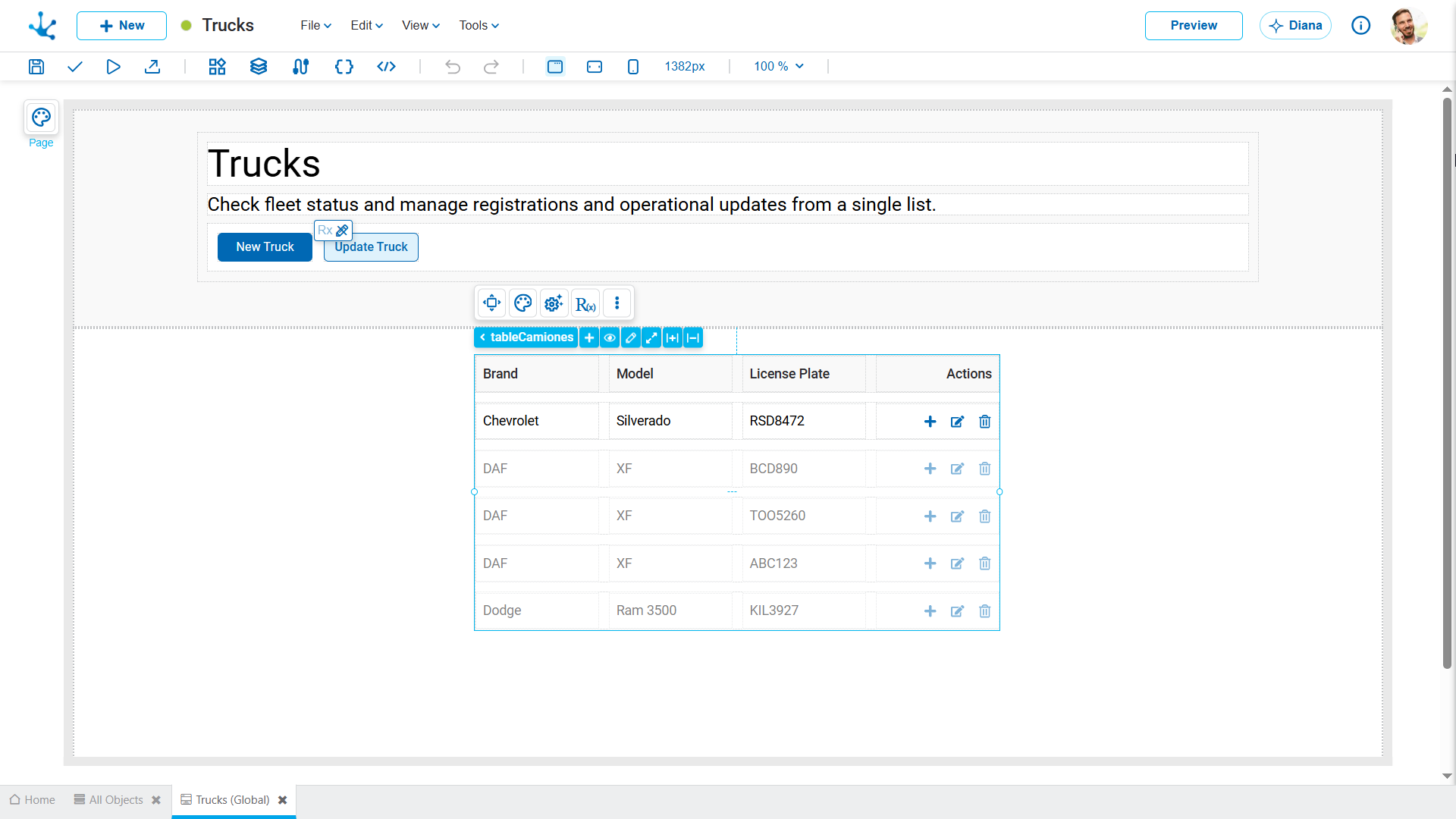
Allows information from a data source to be viewed, edited, and managed through an interface organized into rows and columns.
It can be used for both data show and editing.
Main Functionalities
•Display information from a data source.
•Edit records directly from the table.
•Add and delete records.
•Sort information by columns.
•Resize columns.
•Use paging or infinite scroll.
•Customize the display when no records exist.
Structure
The table consists of the following sub-elements:
•Table: Manages the overall structure and configuration.
•Header: Contains the columns.
•Column: Defines how each data item is displayed.
•Row: Represents a record from the data source.
•Cell: Displays the value of a field within a row.
•Table Actions: Groups the available actions on the records.
•Table Placeholder Displayed when the table contains no data.
Building and Editing
When adding a table to the modeling area, its initial structure is automatically generated, consisting of the Table, the Header, Columns, Rows, Cells, Table Actions, and Table Placeholder.
Once the table has been created, its structure and behavior can be modified using the operations available in the breadcrumb, depending on the selected subelement.

Operations on the Table
Selecting the table from the breadcrumb enables the following actions:
 Build Column
Adds a new column to the end of the table, inheriting the visual configuration of the last existing column.

 View/Hide Placeholder
Switches between displaying the records and the table placeholder, allowing both states to be configured in the modeler.

 View/Hide Edition
Allows the first row of the table to be switched between edit mode and display mode during modeling, facilitating the configuration of editable fields. On the pages, when the property Always editable is enabled, the first row is permanently displayed in edit mode. When disabled, the first row is viewed in display mode and this option allows temporarily switching to edit mode during modeling. This option is not visible in entities, as editing is always enabled.
 Expand
Allows the table to automatically adjust to the available space within its container, expanding its size proportionally. This facilitates a more flexible layout and better use of the visible area.
 Increase Spacing
Increases the table padding by replacing the padding spacing variables with the next variable in the layout system spacing scale. Properties configured with a fixed value remain unchanged.
 Reduce Spacing
Reduces the table padding by replacing the padding spacing variables with the previous variable in the layout system spacing scale. Properties configured with a fixed value remain unchanged.
Operations on the Header
Selecting the header from the breadcrumb enables the following action:
Build Column: Adds a new column to the end of the table, inheriting the visual configuration of the last existing column.
Operations on the Column
Selecting a column from the breadcrumb enables the following action:
 Duplicate Column: Creates a copy of the selected column and automatically adds it to the end of the table, preserving its configuration and styles.
Operations on the Row
Selecting a row from the breadcrumb enables the following action:
Build Column: Adds a new column to the end of the table, inheriting the visual configuration of the last existing column.
Operations on the Cell
Selecting a cell enables the following action:
Duplicate Column: Creates a copy of the selected column and automatically adds it to the end of the table, preserving its configuration and styles.