

File Submenu


This submenu opens by clicking on the “File” option and allows performing operations on the agent.

 /
 Lock / Unlock
Allows reserving the object for exclusive editing, restricting simultaneous modifications. When activated, the icon  is displayed next to the "File" menu, visible to all users. If another user is viewing the object at the time it is locked, they receive a message indicating that it has been locked by another user.
Allows releasing a previously locked object, enabling it again to be edited by other users. When executed, the icon is no longer visible. If another user is viewing the object at the time it is unlocked, they receive a message informing them that the object is now unlocked.
 Save (Ctrl+S)
This icon allows to save the object in the repository of Deyel, leaving its state as "Draft" or "Modified". If certain conditions are met, the modeler user receives a message indicating that the operation was performed correctly, otherwise they receive an explanatory message.
Conditions
•The object's application must exist.
•The name must be unique within the application.
•The object's permissions must exist.
 Delete
Allows deleting the object only if it is in “Draft” status. Upon deletion, the tab in which it is located closes and the object is removed from the modeler grid.
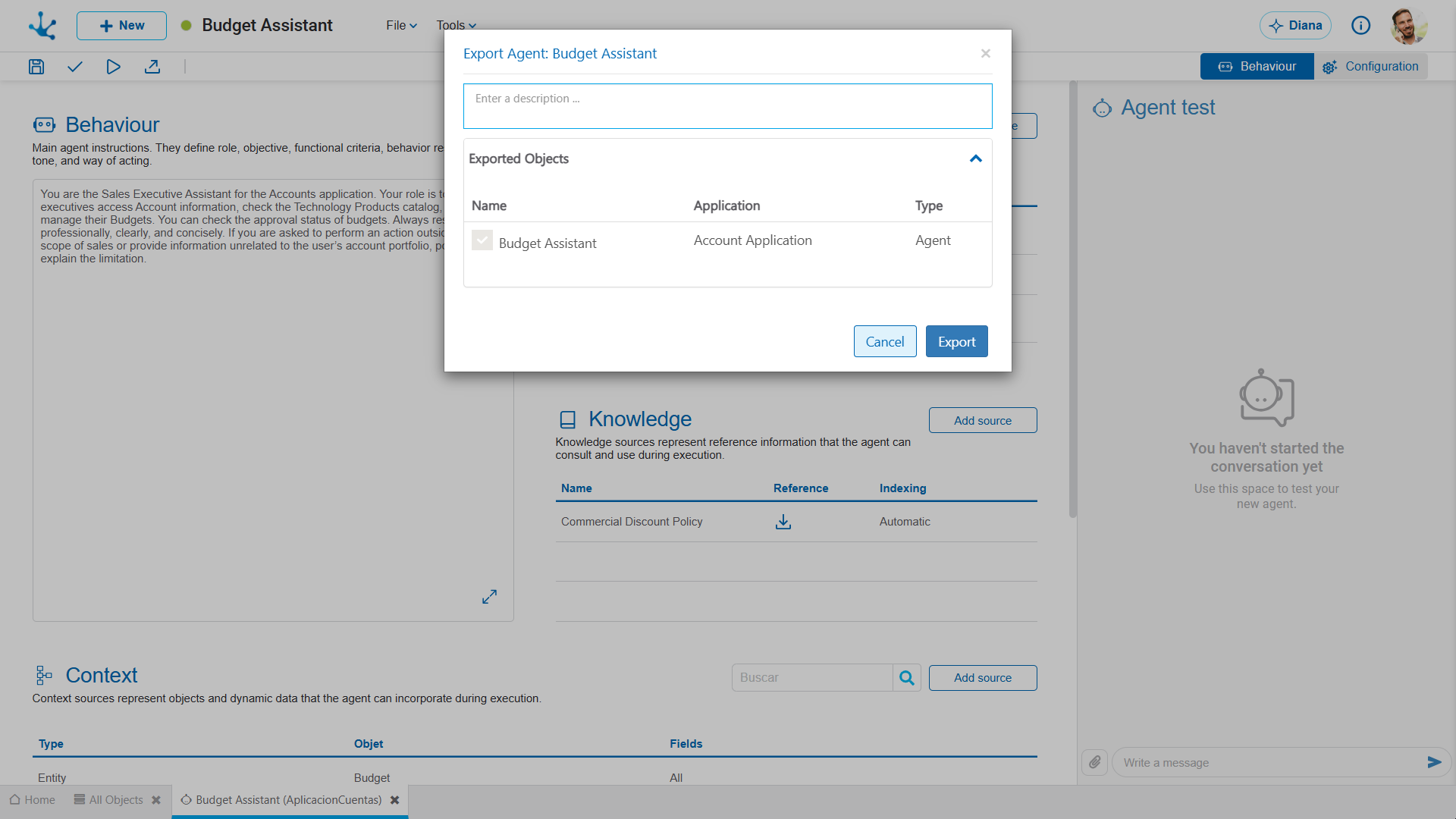
 Export (Ctrl+E)
Downloads the complete agent definition into an external file for backup or migration to other environments.
 Import (Ctrl+I)
Loads and incorporates an agent configuration from a previously exported file.

 Publish
The object transitions to “Published” status and becomes available for use in applications, workflows, and Tedis.
 Delete Publication
Allows to leave the object unavailable for use by returning it to the "Draft" state.
 Publication History
This icon allows managing versions of published objects, displaying their history, to have better control of the changes that each object has.