

File Specifics


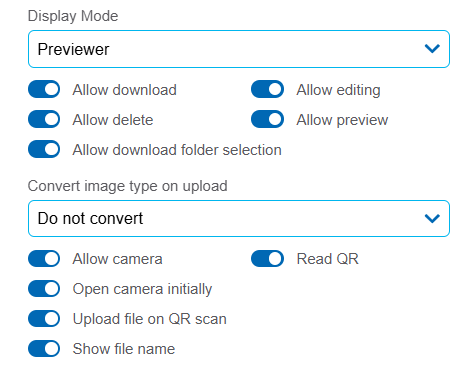
Display Mode
Allows modifying how the file uploaded by the user is displayed.
Possible Values
•File Name: Displays only the file name when the user uploads it, without an additional preview.
•Previewer: Allows viewing a preview of the uploaded file within the field, offering a more user-friendly and interactive interface. The file can also be viewed online without downloading it by clicking the icon  , which opens the preview within the same object, allowing the content to be reviewed without leaving the object. The file can be downloaded using the icon
  . If the file format is not supported for preview, it is represented by a generic icon.
Supported Formats for Preview
- Documents and Presentations: DOC, DOCX, ODT, RTF, TXT, PDF, PPT, PPTX, ODP.
- Spreadsheets and Data: XLS, XLSX, ODS, CSV.
- Images and Graphics: PNG, JPG, JPEG.
File viewing is performed using the Google Gview library, so it is necessary for workstations to have access to this library, which is located in the *.google.com domain.
Allow download
Enables downloading the file to the local device.
Allow editing
Enables modifying, updating, or replacing the uploaded file.
Allow delete
Enables deleting a file that has been previously attached to the field.
Allow preview
Enables viewing the file content directly within the application, without needing to download it.
Allow download folder selection
Enables selecting the destination folder when downloading the file.
Convert image type on upload
When active, it allows automatically converting images to the specified format at the time they are uploaded by the user.
Possible Values:
•Do not convert (default value): Maintains the original image format.
•PNG: Compresses the image without quality loss and with transparency support.
•JPG/JPEG: Reduces the file size with possible quality loss. Compatible with most applications.
•WEBP: High compression with minimal quality loss. Ideal for web environments.
This property is only displayed if the field has the Content property empty (i.e., it allows all formats), or if Content is specifically modeled for images.
Previewer Mode Properties
When the Display Mode property is set to 'Previewer', two additional properties are enabled at the bottom of the panel.
Allow camera
Checking this property enables two additional options to configure camera usage:
Open camera initially
Turns on the camera by default when accessing the field.
Read QR
Enables the camera to scan and read QR codes. Activating this option enables an additional property.
Upload file on QR scan
Enables automatic file upload once the code is scanned.
Show File Name
Displays the attached file name next to the preview.